
Get started with Dino
Whether you want to try the app immediately or deploy it on your own infrastructure, Dino is built to be flexible. Choose the setup that fits your needs below.
For End Users: Try the Backendless Demo
If you want to explore how Dino works without setting up any infrastructure, you can jump straight into our backendless demo.
Because Dino is designed as an offline-first application, "backendless" means the app runs entirely within your browser or device. You don't need a constant internet connection or a live server database to use it; your data is processed and stored locally on your device first, allowing you to experience the full functionality of the interface seamlessly.
Read the User Guide:Dino Official Documentation
Few simple steps to start with Dino:
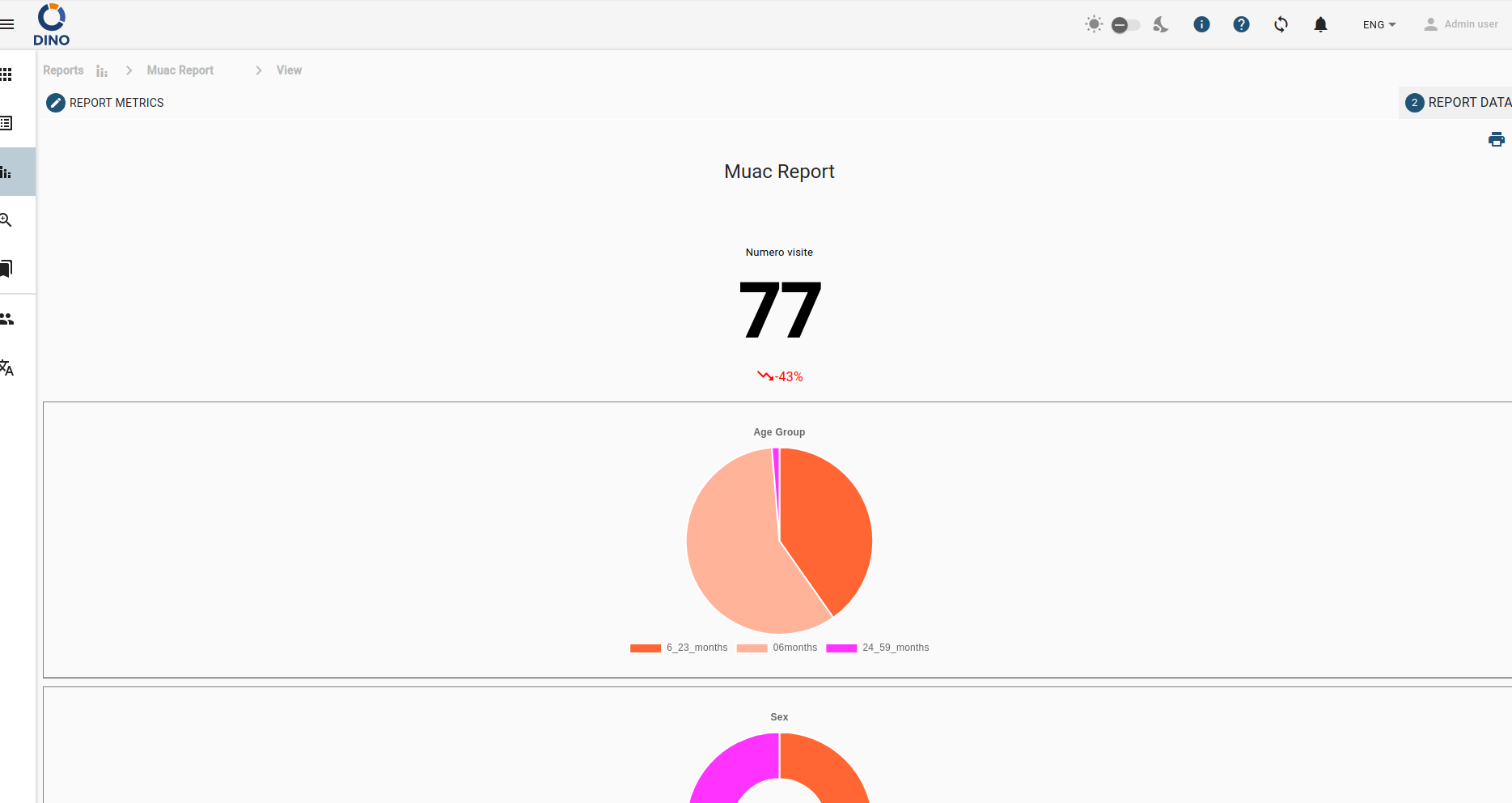
- Choose from our selection of pre-configured data collection scenarios below (including MUAC visits, surveys, and more). Download the JSON files to get started instantly, and easily customize them to fit your project's specific needs. To learn more about building and extending scenarios, check out our Dino guidelines.
- Open the demo
- Click on top right corner on "Admin User"
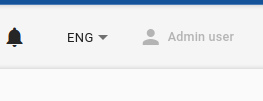
- Click on "Backup and Restore" and just after on "Restore data"

- Select the file that you downloaded before
- Enjoy the demo
For System Administrators: Self-Hosted Deployment
For IT professionals, SysAdmins, and DevOps teams looking to deploy Dino on their own servers, we provide a streamlined Docker-based installation process.
Quick Start (very soon!)
You can have a fully containerized instance of Dino running in just a few minutes. Make sure you have Docker and Git installed, then run the following commands:
Bash
# 1. Clone the installation repository
git clone git@github.com:gnucoop/dino-install.git
cd dino-install
# 2. Generate a deployment into a folder of your choice, and answer the prompts
./setup.sh my-dino
# 3. Start the stack
cd my-dino
docker compose up -d # or: docker-compose up -d
# 4. Open the app in your browser at the Dino URL
# https://dino.<BASE_DOMAIN>
# (The exact URL, along with your admin email and password,
# are printed in the terminal at the end of the setup.sh script)
View the Source and Advanced Configuration:Dino Installation Repository on GitHub